Copy the CS2 inspect link.
Open the item in your Steam inventory, on the Steam Community Market or on a marketplace. Copy the link behind “Inspect in Game.” A valid link begins with steam://rungame/730/.

Paste a Steam inspect link to create a clean screenshot of your CS2 skin. Choose the front, back or both views, then download and share the image.
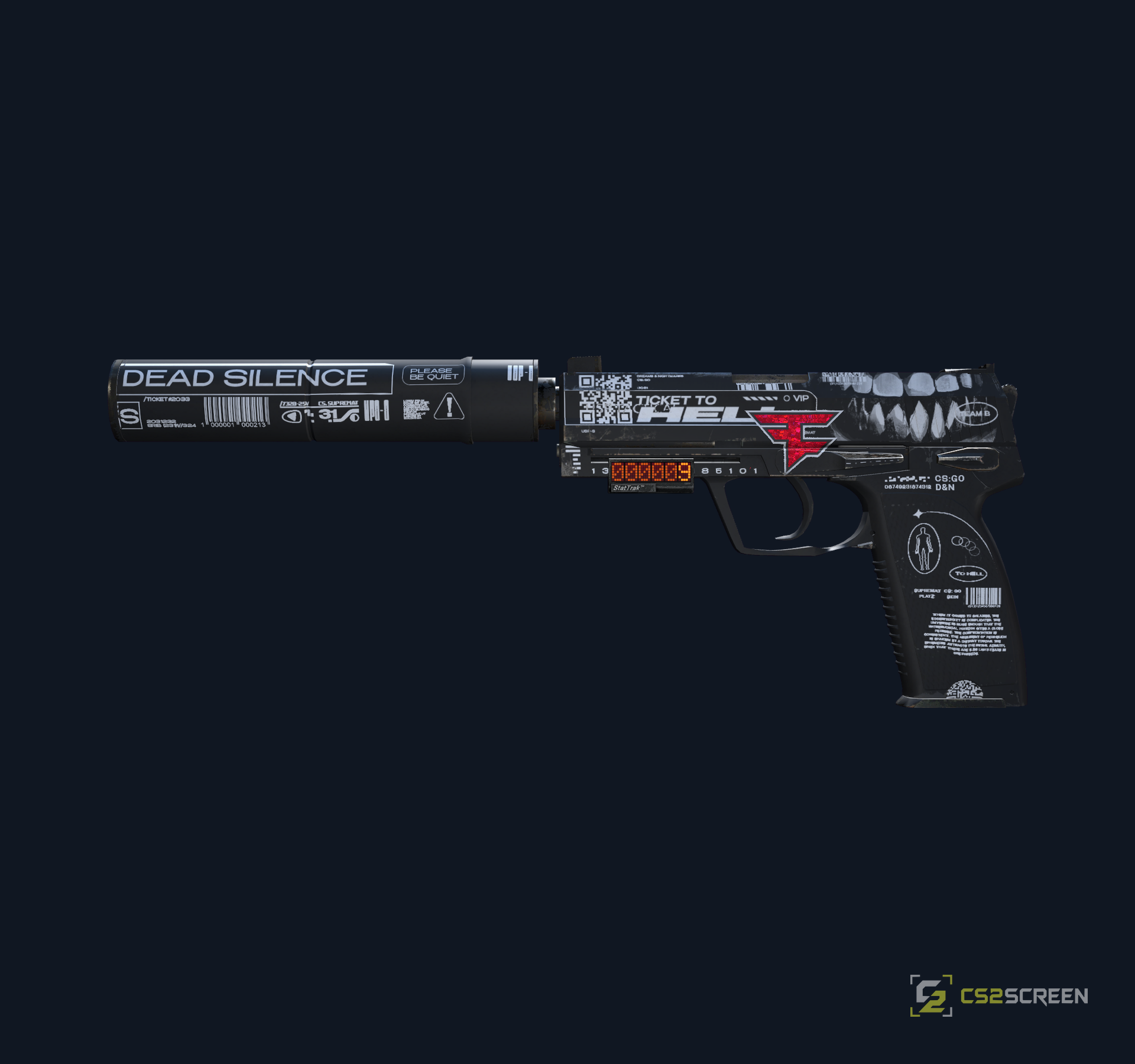
A Steam inspect link identifies a specific CS2 item and its visual details. CS2SCREEN turns that link into a consistently framed image without manual in-game capture — rendered in real CS2 and delivered as a high-quality AVIF image.
Open the item in your Steam inventory, on the Steam Community Market or on a marketplace. Copy the link behind “Inspect in Game.” A valid link begins with steam://rungame/730/.
Select the front view for the primary finish and sticker craft, the back view for the reverse side, or both views for a complete CS2 skin screenshot.
Save the image for a trade listing, sticker craft, collection or Discord post. Every screenshot is rendered in real CS2 and downloads as a high-quality AVIF file.
Explore the proposed CS2 screenshot API integration for marketplaces, trading platforms and inventory applications.